ONE IMAGE · MANY COLORS
Turn Any Image into a Layered Multicolor 3D Print
Pic2Layers is an online filament-painting generator that transforms photos, artwork and illustrations into layered designs for multicolor 3D printing.
Upload an imageFrom photo to printable layers
Loading generator…
What is Pic2Layers?
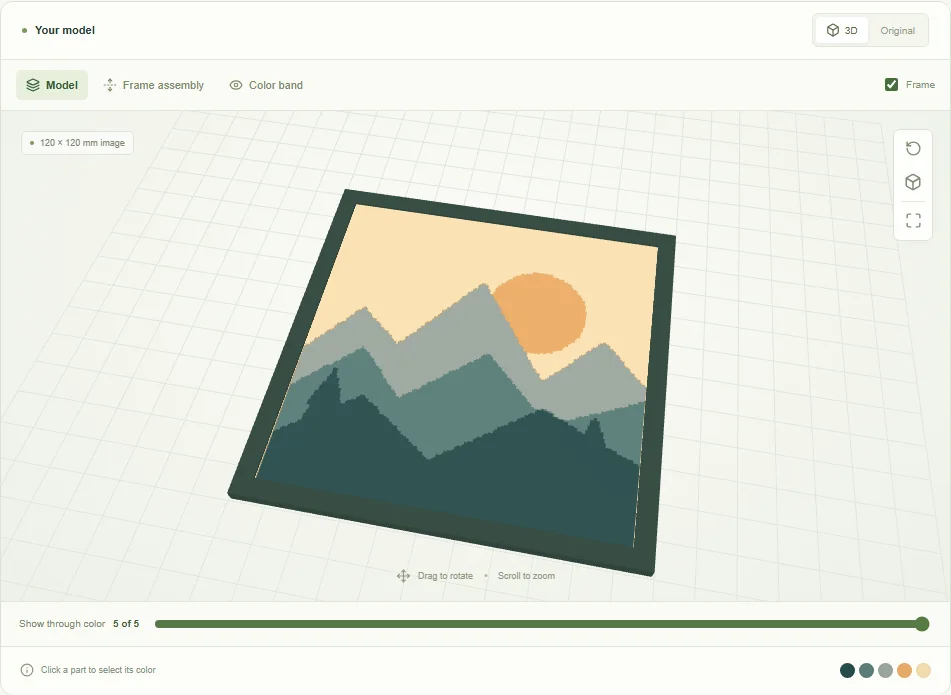
Pic2Layers helps you turn a flat image into a single stacked model with color bands at different heights. Upload a JPG, PNG or WebP image, choose how many colors to use and inspect the result in a movable 3D preview. The tool detects a palette and orders it from dark to light as a starting point. You can replace each detected color with a filament you own and move the color bands up or down when your material calls for another order.
The result is one print built on a common base. Small colored regions rest on the layers below; they are not loose tiles to assemble. The optional frame and bezel are separate printable parts sized to the model. Your image is processed in the browser, with no project account or cloud library.
How Pic2Layers Works
1. Upload your image
Start with a photo, illustration or logo. A clear subject and distinct color regions usually make the first preview easier to interpret.
2. Adjust your layers
Set the print width, number of colors and print layer height. Select a band in the palette or click it in the preview to assign your filament color.
3. Export and print
Download the model directly as 3MF or STL, or choose the ZIP kit with its fitted frame and guide. Open the file in your slicer and verify every material change.
Create Filament Paintings from Photos and Artwork
Filament painting uses thin layers of filament to build an image with changing color and depth. In a sliced print, the order of colors and the thickness of each band affect which areas remain visible from above. Pic2Layers begins with a dark-to-light order, but your real filament can be more or less translucent than the preview suggests. Experiment with a small test print when color accuracy matters. The 3D view shows solid colors; it does not measure transmission distance or predict optical blending.
Why Use Pic2Layers?
The editor keeps the necessary choices together: image, size, layer height, number of colors, filament replacements and export format. You can hide upper bands in the preview to see how the stack builds, isolate a band for inspection and select the associated color control from the model. A common base keeps the printed image together, while the frame kit gives you a fitted way to present it. No database is required to start a project.
From Image to Multicolor 3D Print
Try the included landscape example before uploading your own file. It demonstrates the source image, detected palette, stacked preview and downloadable print model. For a photo, begin with strong contrast and a limited range of important colors. Keep narrow details in mind: features smaller than your printer can reproduce may disappear. The generated model must still be checked in a slicer for scale, wall quality and color assignments before printing.
Made for Your 3D Printing Workflow
The direct 3MF export keeps color bands as separate editable parts inside one aligned model. STL is also available, alongside a guide with the planned color-change heights. Import into a slicer that supports your chosen format; Bambu Studio and OrcaSlicer are examples. Slicer behavior differs, so confirm that the filaments are assigned to the correct objects and that the layer height matches the guide. You can print with an automatic material system or schedule manual filament swaps if your setup supports them.
Frequently Asked Questions
What is Pic2Layers?
A browser-based tool that converts an image into a layered, multicolor design for 3D printing. You can preview the stack, change filament colors and export the model.
Can I use my own filament colors?
Yes. Select a color band in the palette or 3D preview and replace its detected color with a filament color you own. The 3MF contains separate color parts.
What can I download?
The model alone downloads directly as 3MF or STL. The optional kit is a ZIP containing the model, a fitted frame, a bezel and a printing guide.
Do I need an AMS or MMU?
No. A printer that supports manual filament changes at the specified heights can also make a layered print. Check your printer and slicer before starting.
Learn Filament Painting
Understand filament painting, follow how the tool works or browse practical printing guides. If you already use another filament-painting tool, read the Pic2Layers comparison to understand what this generator does and does not simulate.